

Firstly what is Google Friend Connect?
Think of it as Facebook but in reverse.
Instead of joining an existing social networking site such as Facebook and being limited to the Facebook world, you are plugging your site into the social network. Your site becomes a node where you are able to interact with other visitors by making friends, sharing media, posting comments, playing games and more.
You can even invite other friends from other social networks and contact lists to join your site or blog.
Below is a guide on how to setup Google Friend Connect with WordPress. Please note this only applies to self-hosted WordPress sites, NOT WordPress.com
Firstly login to your Google Account. If you don’t already have a Google Account sign up for one here,

Now go to the Google Friend Connect site and click on the <Set up a new site> button,

Click on Friend Connect for standard web sites,

Click Continue,

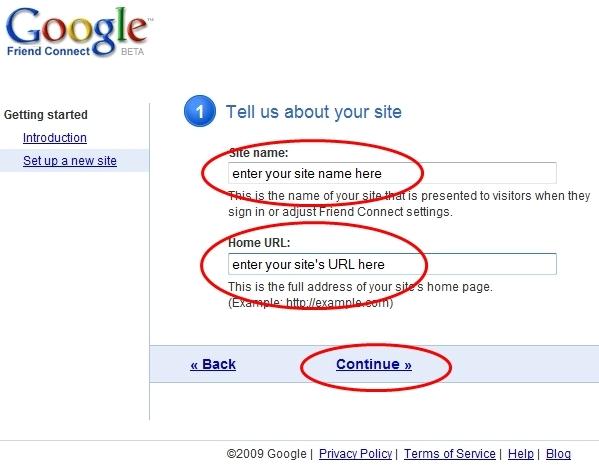
Enter,
Site name: enter your site name here
Home URL: eg http://example.com
Then click Continue
Click on <rpc_relay.html> button to download file.. just download to your Desktop.
Now click on <canvas.html> button to download file.. download this also to your Desktop.
Do NOT click on Continue just yet.. we need to upload these two files to our webserver.

Using your FTP client upload both files (rpc_relay.html and canvas.html) in to your blog’s root directory.
eg if your blog’s address is http://example.com then the root directory is “/“
or if your blog’s address is http://example.com/blog then the root directory is “/blog/“

Now click on <Continue>,

Click <Test to finalize setup> button
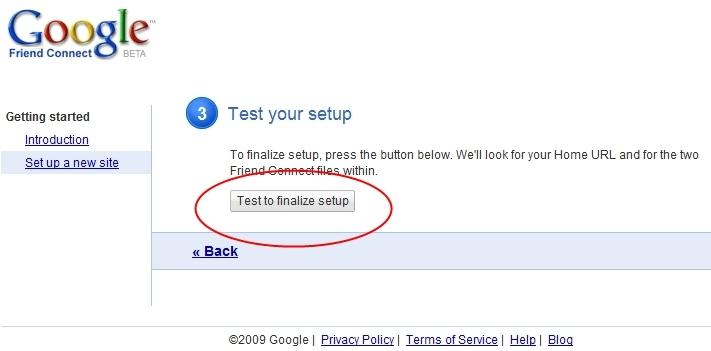
If you have uploaded those two files to the correct location then you will see this screen. If not go back and repeat the above steps!
Click on Get code for the Members gadget,

On this screen you can change the size and colors of the gadget.
Click <Generate Code> button,

Select all the code and copy it,

Now log into your WordPress site and select Widgets,

On the Widgets page select the Text widget and click Add,

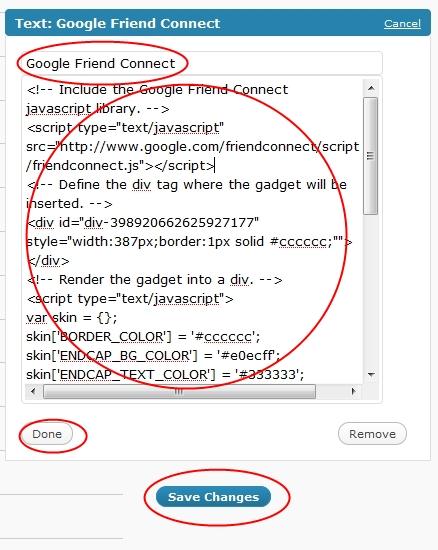
Paste the code into the text area and add a title, eg Google Friend Connect.
Click <Done> button
Click <Save Changes> button
Now go and view your site.. the Google Friend Connect widget should show up nicely,

